Physical Address
304 North Cardinal St.
Dorchester Center, MA 02124
Physical Address
304 North Cardinal St.
Dorchester Center, MA 02124
A fully-featured KVM solution for uConsole with excellent latency and impressive build quality.
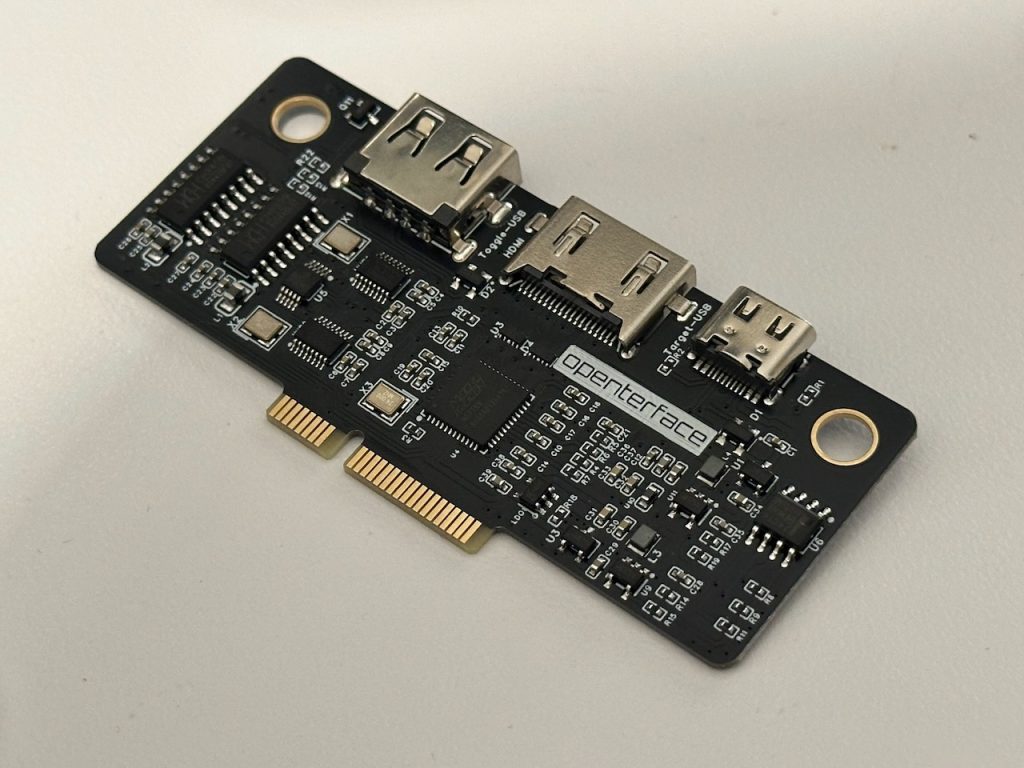
I’ve been testing the Openterface KVM expansion board for the Clockwork uConsole, and it feels like it was designed for exactly the kind of situations I run into in AV work.
Most of my day-to-day “emergencies” happen in the back of a rack, dealing with a headless server or a device that just refuses to come up on the network. Normally, my go-to kit is a portable field monitor with a rechargeable battery and a compact media-center style wireless keyboard/trackpad. It works, but it’s a bit of a juggling act with cables, batteries, and balancing things on top of gear.
The uConsole with this KVM board changes that: it’s a single device that’s both a portable Linux PC and a KVM solution. No separate screen, batteries or keyboards to manage.
Why a KVM matters
When a system won’t boot, or you need to check BIOS/firmware settings, SSH and VNC aren’t options. You need a screen and keyboard directly connected. That’s where a KVM shines, and why I always carry something for these situations.
Compared to Network-style JetKVM
Somewhat ironically, I ordered both this Expansion Card & a similar home-lab favorite product called JetKVM. They both showed up at my house in the same week!
The products serve slightly different use cases. A JetKVM can be plugged into a machine permanently and accessed remotely over the network. I’ve hooked up mine to a 4-port KVM switch so I can switch between a few different machines in my home-lab.
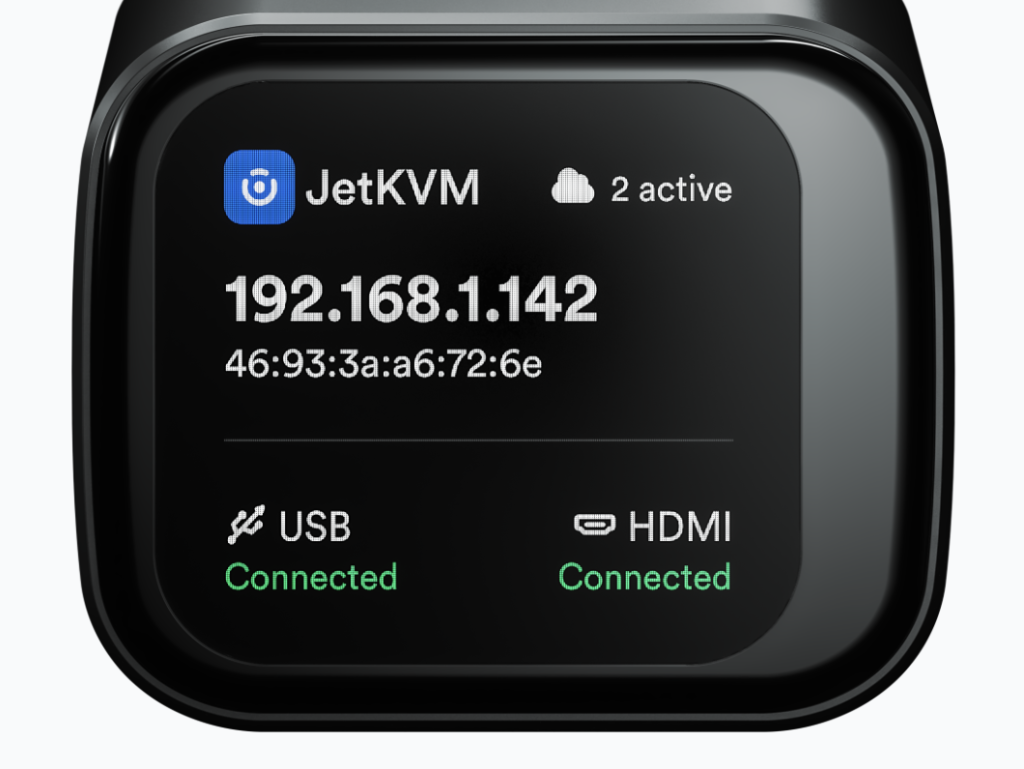
However, a limitation of this device is that you need a working network and another device to access it. Depending on what kind of a situation you’re in, it might be more practical to be able to work completely offline, one of the features Openterface prides itself in.
That being said, the JetKVM has an extremely polished interface that is hard to beat, and had a much easier time identifying when a valid signal was established on the video and keyboard of the device than on the Openterface.
Latency and video
Testing Notes: Tested on uConsole with CM5
I tried it
Software setup
Setup was fairly simple, although you can quickly end up on the wrong track. Their docs recommends you use the install script, which doesn’t seem to install the latest version. Their stack uses Flatpak uses which took some time to get setup.
Alternatively if you’re running Rex images you’re likely better off doing just
sudo apt install openterfaceqt
As he has already kindly packaged it for his popular Debian distribution.
Access from Linux, macOS, Windows
As for accessing target machines using the Openterface KVM, here’s what I found:
Probably the most interesting part of this expansion board is that it’s based on Openterface’s USB-based offerings. This means that the software will continue to improve in order to offer support for a large variety of customers using their product line, not simply the relatively small uConsole community who get their hands on a uConsole and end up purchasing the board.
This is the biggest upside of this product, as with some other expansion boards, you run the risk of not having enough momentum for ongoing development.
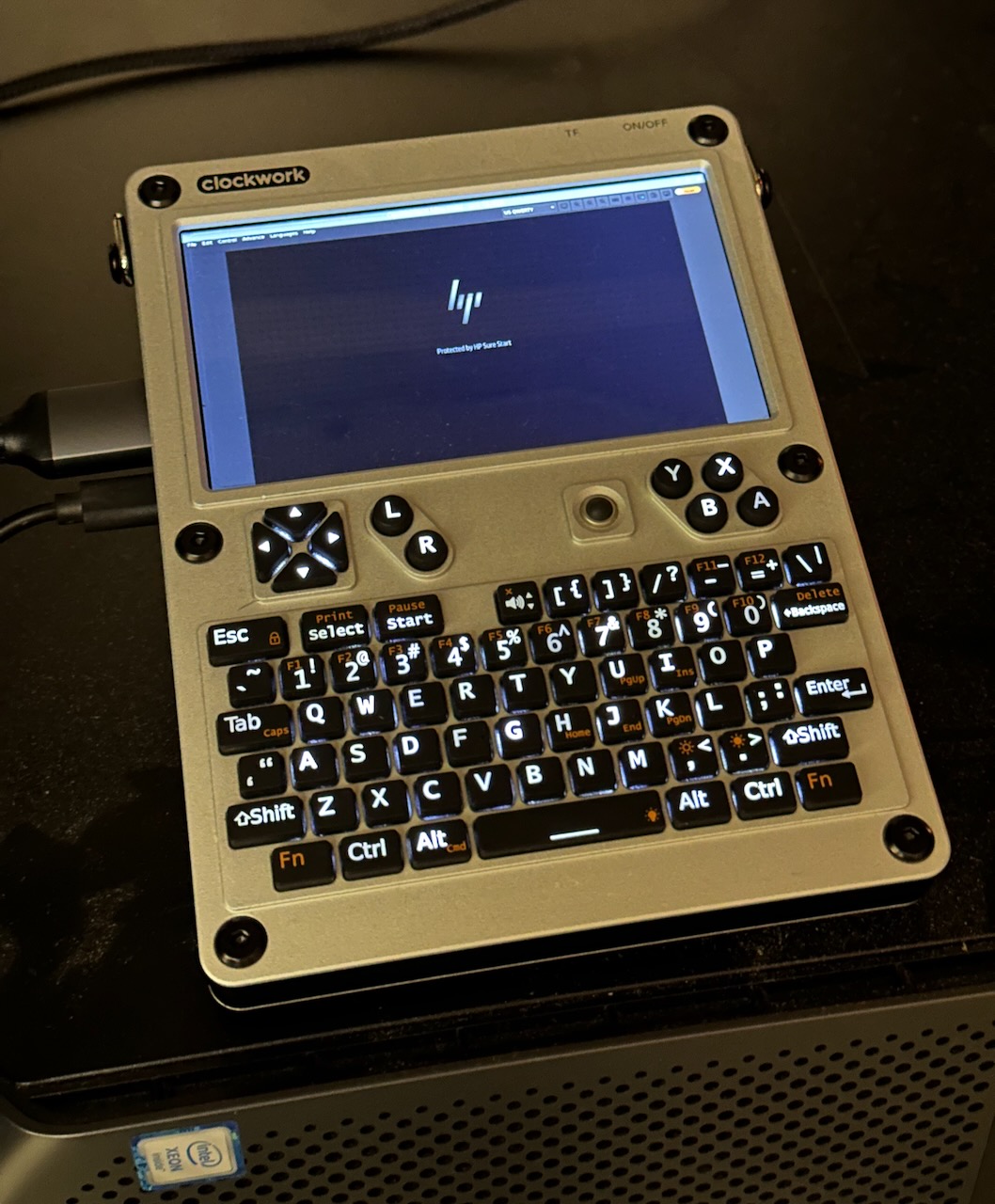
Real World Use: Fixing a ProxMox install on an HP Workstation
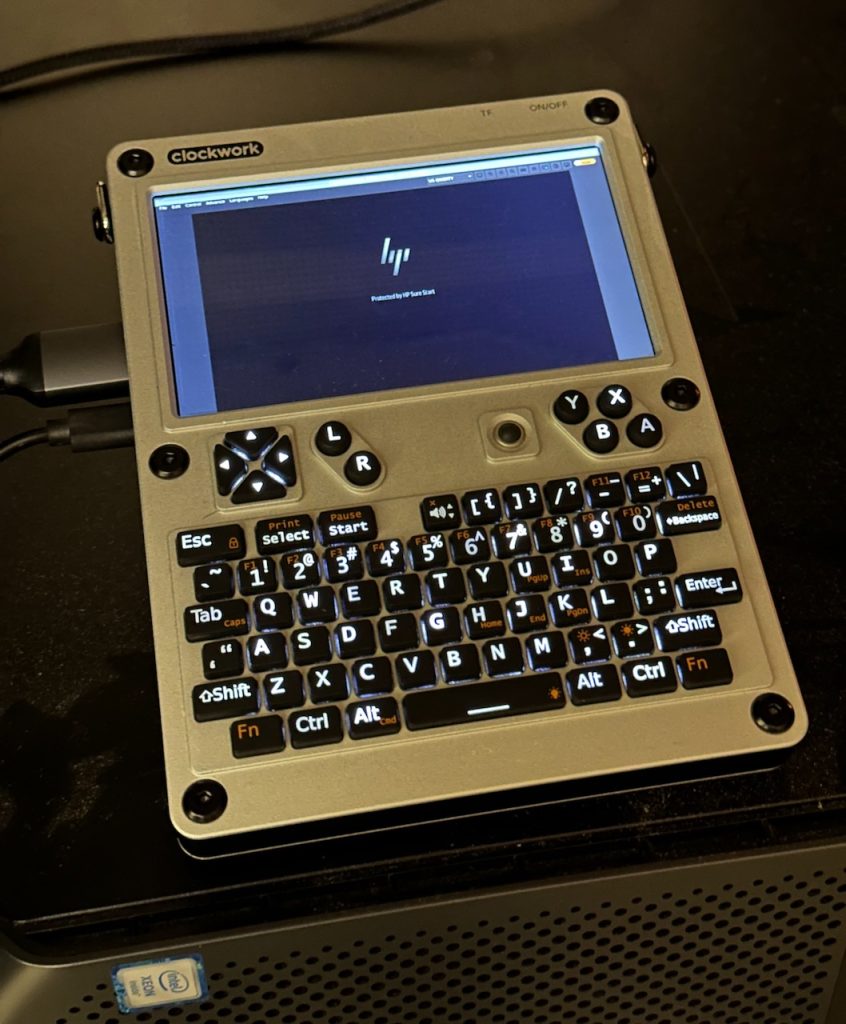
One of the first practical tests I gave the Openterface KVM Ext was on an HP Workstation that failed to boot up after a ProxMox update gone wrong.
This station is headless and without a KVM solution, so it gave a good opportunity to test out the expansion board.
Video signal from the BIOS came up relatively easily once the software was started. Latency was impressive, with no noticeable lag when interacting.
I was able to use the keyboard to interrupt the boot process, although not in every instance. For example, I was able to enter the BIOS menu but not the GRUB boot loader. This is likely an issue with how the target is (or isn’t!) detecting the USB keyboard of the KVM Ext.
Another issue I ran into when running the software was that when not connected to the Internet, the software wanted to “upgrade” my firmware to a non-existant “00000” firmware. When online, it seems to retrieve a version website successfully and doesn’t return this error. Using the updated packages from Rex seems to have resolved this.
Price: $89 USD (Shipping)
Availability: TechxArtisan – Order
Country of Origin: Hong Kong / China
Creator: TechxArtisan / Openterface
It’s not the highest-res or smoothest KVM on the market, but that’s not what I need when I’m crouched behind a rack. For quick fixes, firmware checks, and server troubleshooting, this feels like the all-in-one tool I wish I had years ago. I hope they will add an option to improve support for the Mac bootloader.
TL;DR:
An incredibly compact and useful addition to the uConsole, making it an essential add-on for administrators & homelabbers. While the software is still under development, I’m confident this tool will get more reliable over time!
Stay tuned for the next review in the uConsole Expansion Series or check out our roundup !
